Adding an Arranger to an Active TEM Profile
Employees seeking reimbursement via TEM eDocs must have or create a TEM Profile in order to be paid/reimbursed for TEM-related expenses. Arrangers are people who have access to your TEM profile, in order to help create these reimbursements. The instructions below explain how to add an arranger to your profile.
Important Note: To access KFS and other secure UCI online systems, all users must use a UCI Internet Connection. If working off-site or remotely, you'll need to download (one-time) and ensure OIT's Virtual Private Network (VPN) Software is active. View OIT's VPN instructions.
If you have not created your TEM Profile, please see our How to Create a TEM Profile and add an Arranger guide.
Getting to the TEM Profile Lookup Screen
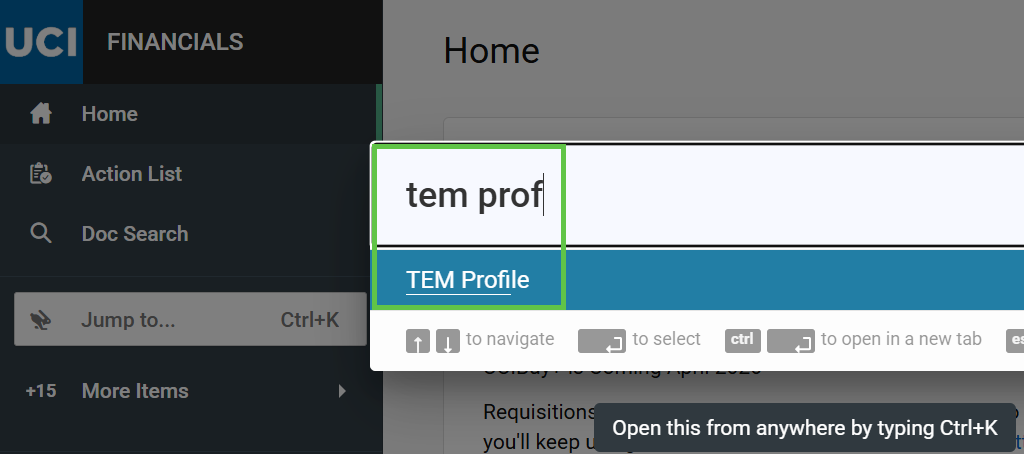
- Go to the KFS home page.
- Select the Jump To field

- Enter "tem profile"
- Select the Tem Profile link
Editing Your TEM Profile
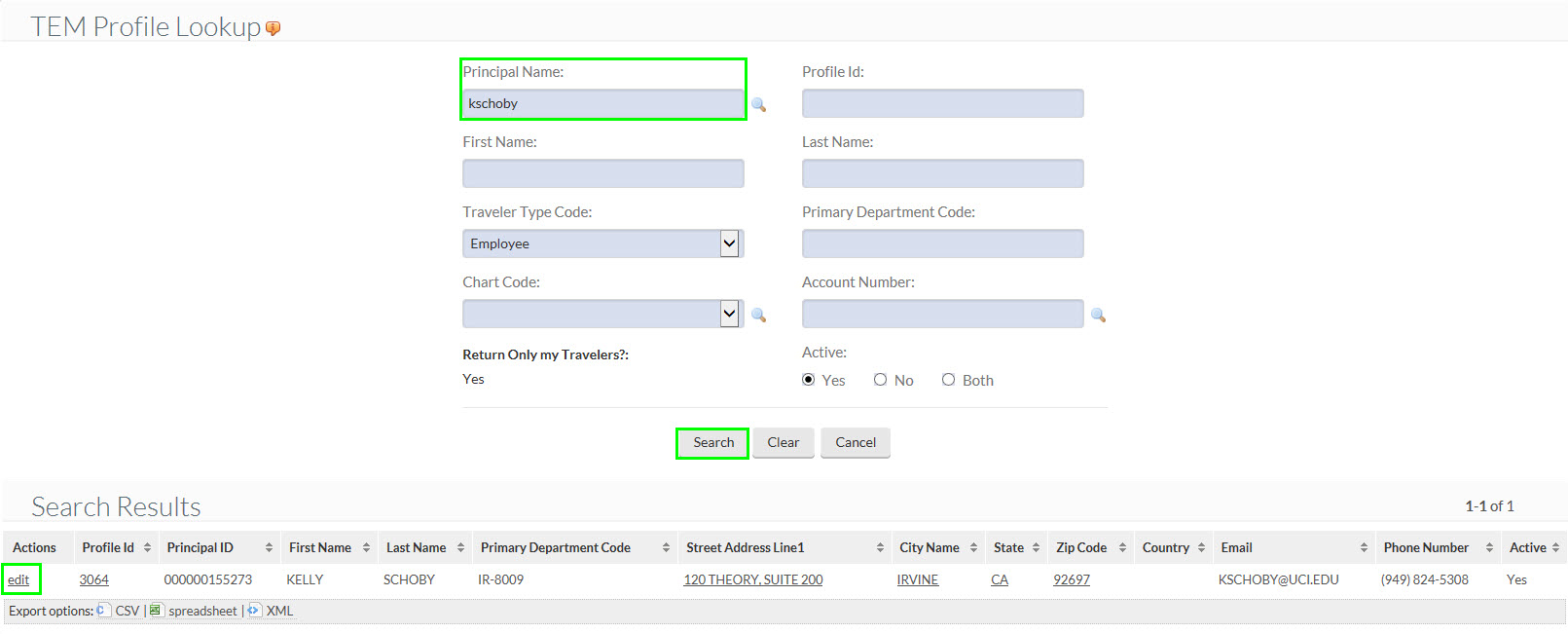
- Search for your TEM Profile by entering your UCInetID into the Principal Name field and clicking the Search button at the bottom of the TEM Profile Lookup.
- If you have a TEM Profile, it will appear in the search results.
- Click the Edit link next to your name in the search results. (Expand the picture below to see the location of the aforementioned buttons highlighted in green.)
- If you do not see your TEM Profile with the Edit button after you select the Search button, you may need to create your profile. To create your profile, please see our How to Create a TEM Profile and add an Arranger guide.
Adding an Arranger to Your TEM Profile
Clicking the Edit button initiates a document in KFS that processes and records the addition of a new Arranger to your TEM profile.
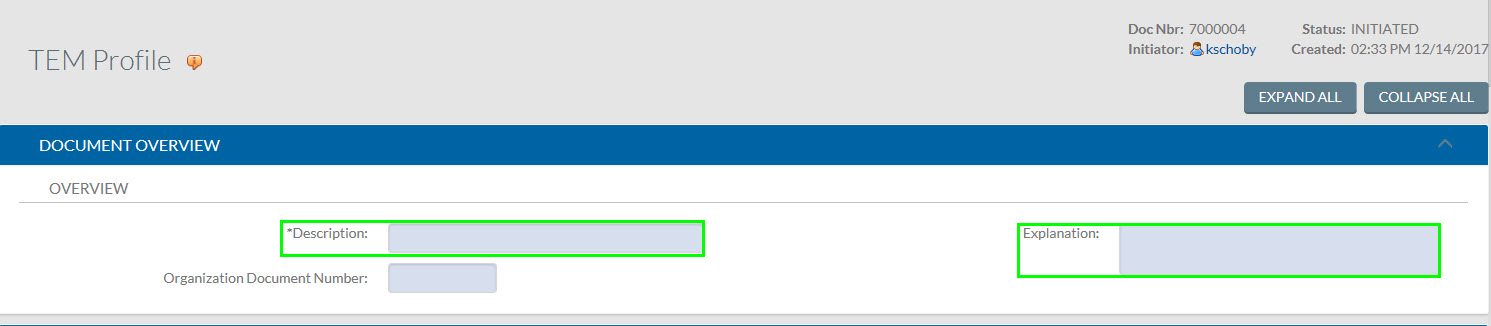
- As with all KFS Documents, you must enter a description and explanation in the Document Overview tab.
- The Description should be something very short. For example, it can just be your name.
- The Explanation should be something simple like "Adding an arranger to TEM Profile for [Your Name]."
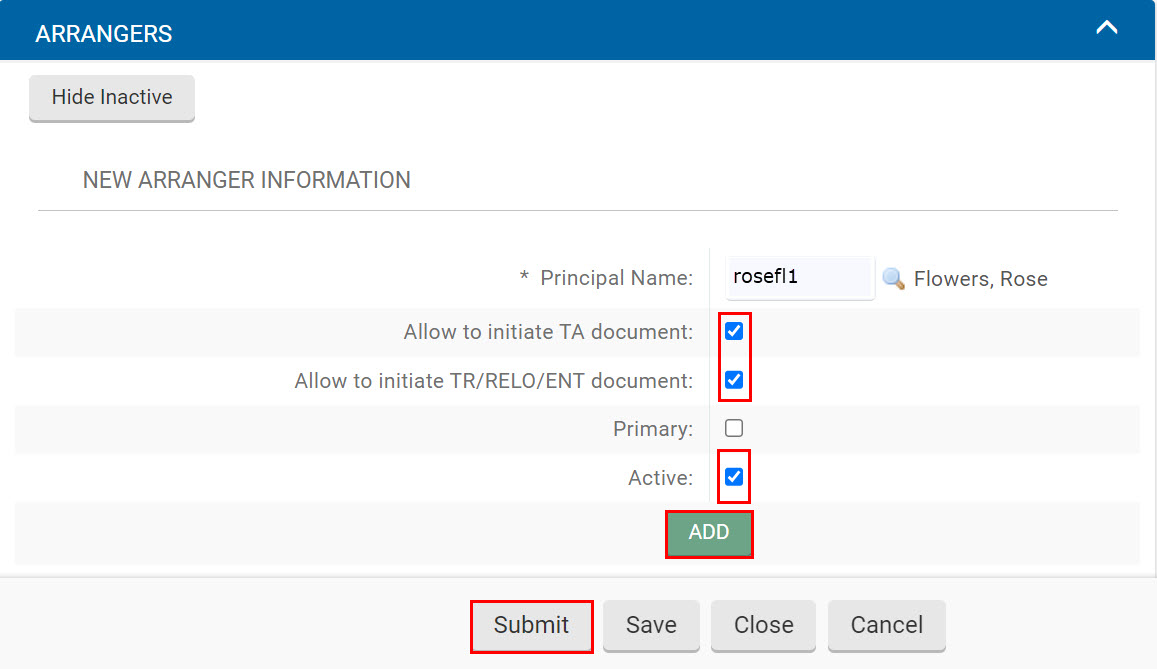
- Scroll down to the Arrangers tab - you can ignore all the others - and enter the UCInetID of the person that you want to add as an arranger into the Principal Name filed
- Check the Allow to initiate TA Document box
- Check the Allow to initiate TR/RELO/ENT document box
- The active box should already be checked. If it's not checked, go ahead and select it so that it has a checkmark.
- Select the Add button
Now you just need to finalize the document and complete the process. The button for submitting the document is at the bottom of the window, so ...
- Select the Submit button. The document must be submitted on the same day that it is initiated.
And that's it! KFS will automatically process your document requesting a travel arranger.
For more information, we have a guide on how TEM Profiles and TEM Arrangers work.