Examples of GECs

This page explains how to complete some basic General Error Corrections in KFS. Your department or school may have policies or procedures that pertain to processing the GEC and should be followed if applicable.

Simple Examples

Adding Additional FAU

The GEC can be used to add additional Full Account Unit (FAU) information to an entry, such as project codes and sub-account numbers.

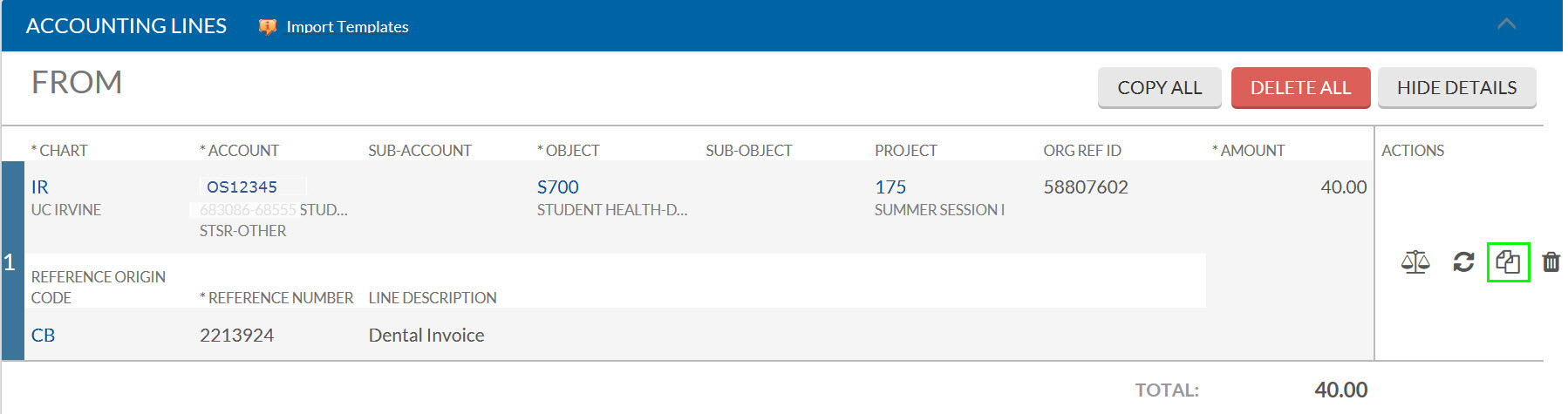
Once the entry is imported to the From section, select the copy-down button.
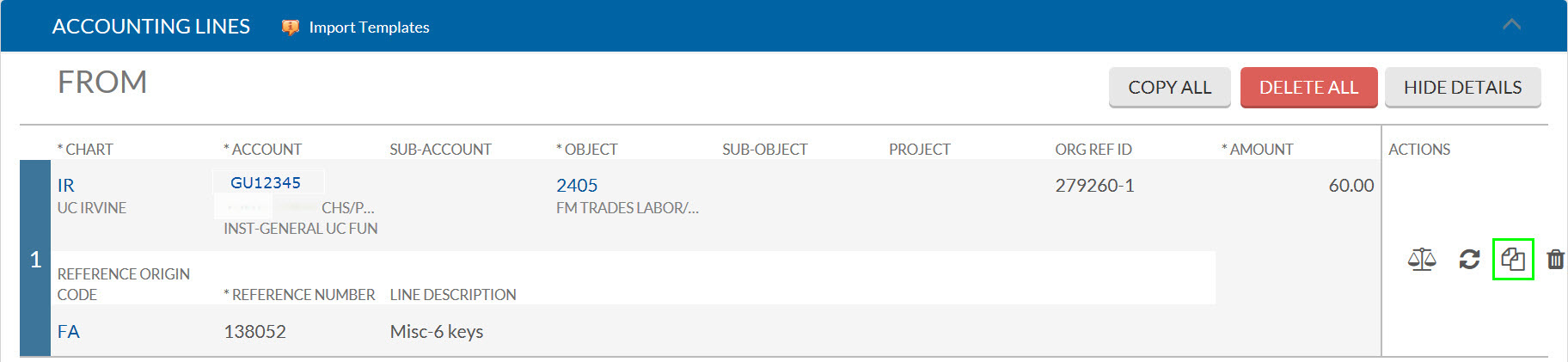
GEC From section showing an imported entry with the copy-down button available to copy the entry into the To section
The GEC From section after an entry has been imported. Select the copy-down button to copy the entry into the To section before adding additional FAU information.

Enter the additional FAU information, save, and submit the eDoc.
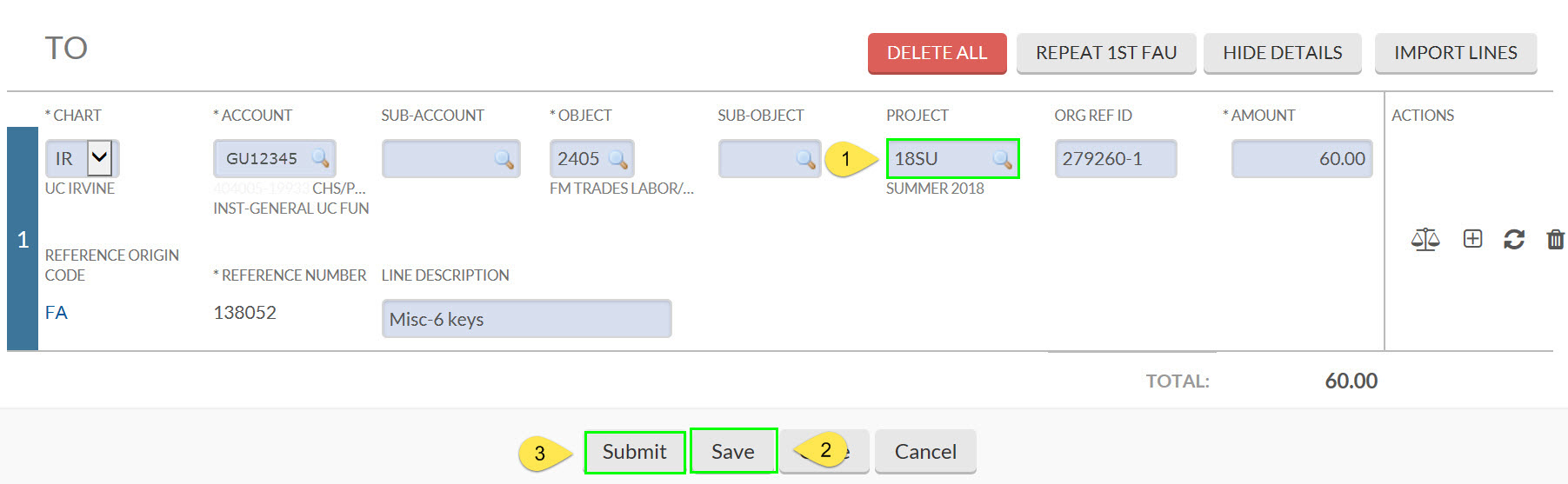
GEC To section with additional FAU fields populated, including a project code and sub-account number
The GEC To section with additional FAU information, such as a project code and sub-account number, entered. After completing these fields, save and submit the eDoc.

Correcting an Expense Entry

Once the entry is imported to the From section, Select the copy-down button.

GEC From section showing an imported expense entry with the copy-down button available to copy the entry into the To section
The GEC From section after the expense entry has been imported. Select the copy-down button to copy the entry into the To section where the corrected account number can be entered.

In the To section, enter the correct account number into the account number field. Then save and submit the eDoc.
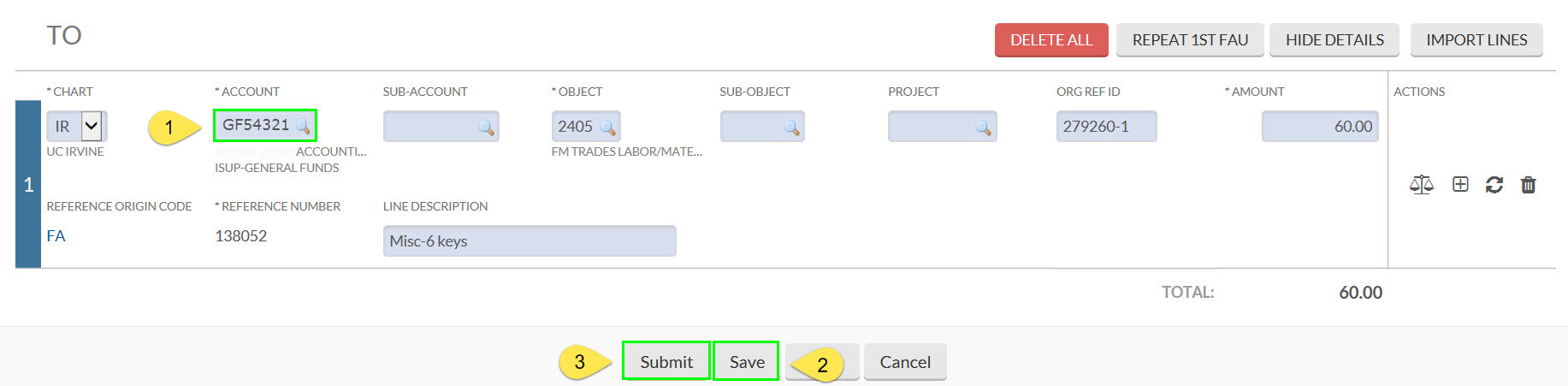
GEC To section with the account number field updated to the correct account number for the expense correction
The GEC To section showing the corrected account number entered in the account number field. Once the correct account number is entered, save and submit the eDoc to complete the expense correction.

Correcting an Income Entry

When importing an income entry, ensure that the credit and income object code (object type IN or IC) is selected.
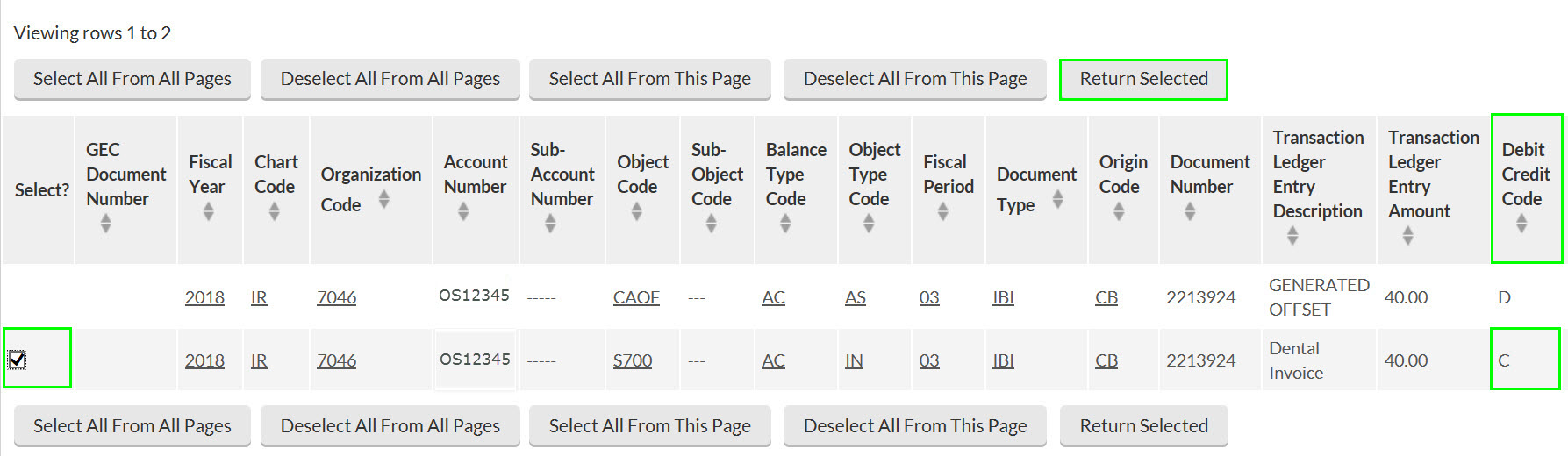
GEC entry import screen showing a credit entry selected with an income object code of type IN or IC highlighted
The GEC entry import screen for an income entry. Ensure the credit entry with an income object code of type IN or IC is selected before proceeding.

Select the copy-down button.

GEC From section showing the imported income entry with the copy-down button available
The GEC From section after the income entry has been imported. Select the copy-down button to copy the entry into the To section.

In the To Section, enter the correct account number into the account number field. Then save and submit the eDoc.

GEC To section for an income entry showing the corrected account number entered in the account number field
The GEC To section for an income correction with the correct account number entered in the account number field. Save and submit the eDoc to complete the income entry correction.

Correcting a Partial Amount of an Entry

If a portion of the amount charged to an account should have been charged to a different account, a GEC can be used to correct the entry. In this example, $60.00 was charged to GU12345. Only $40.00 should have been charged to GU12345, and the remaining $20.00 should have been charged to GU10101. Import the entry that needs to be corrected. Then select the copy-down button.
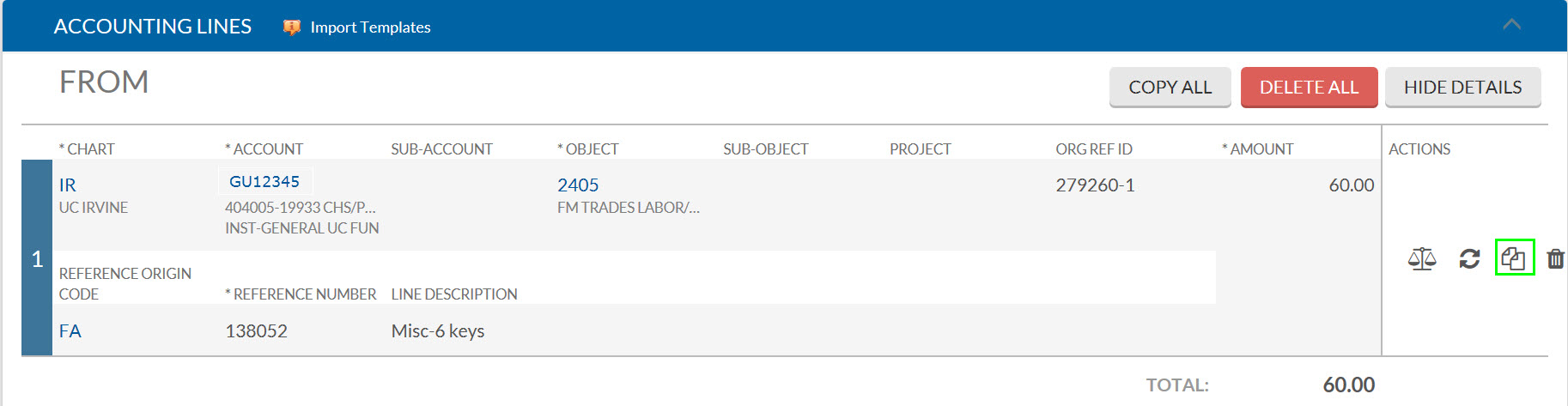
GEC From section with a $60.00 charge imported for account GU12345 and the copy-down button ready to be selected to begin splitting the expense
The GEC From section with the full $60.00 charge imported from account GU12345. Select the copy-down button to copy the entry into the To section before splitting the amount.

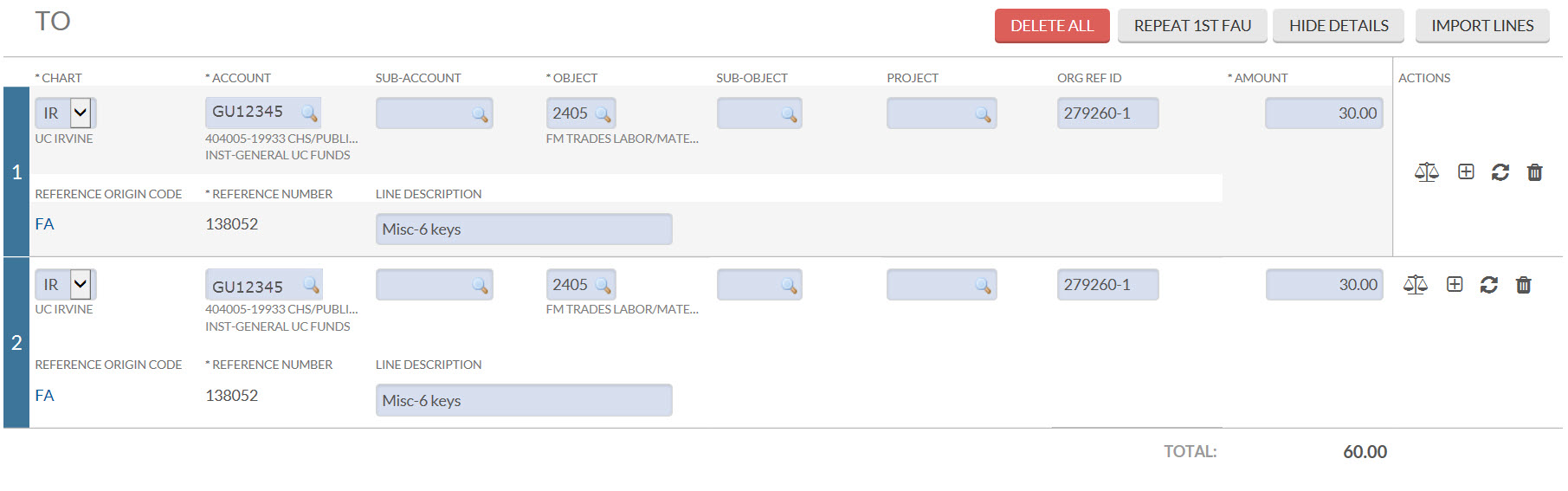
Select the add button in the To Section. This will split the charge into two equal amounts.
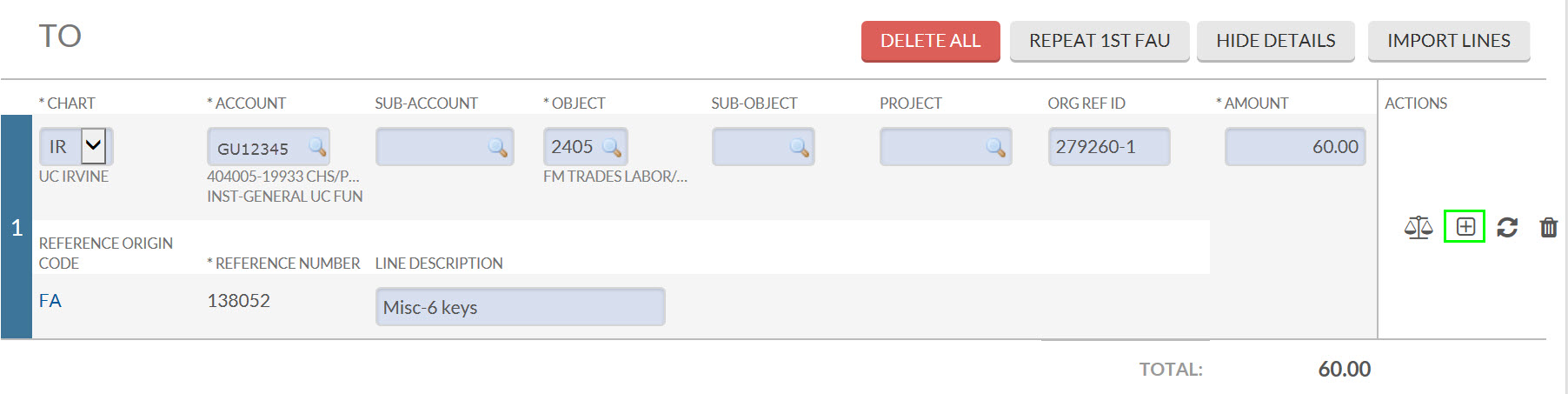
GEC To section showing the Add button used to split the imported charge into two separate line items
The GEC To section showing the Add button, which when selected will split the copied charge into two equal line items that can then be individually adjusted.
GEC To section showing the charge split into two equal line items after selecting the Add button
The GEC To section after selecting the Add button, showing the charge divided into two equal line items. The amounts and account numbers on each line can now be adjusted individually.

Change the amount of line one to the amount that should have been charged to the account that was incorrectly charged the full amount. In this example, GU12345 was originally charged $60.00 but should have been charged $40.00. The amount of $40.00 is entered into the amount field. Change the account number and amount of line number two. In this example, GU10101 should have been charged $20.00.
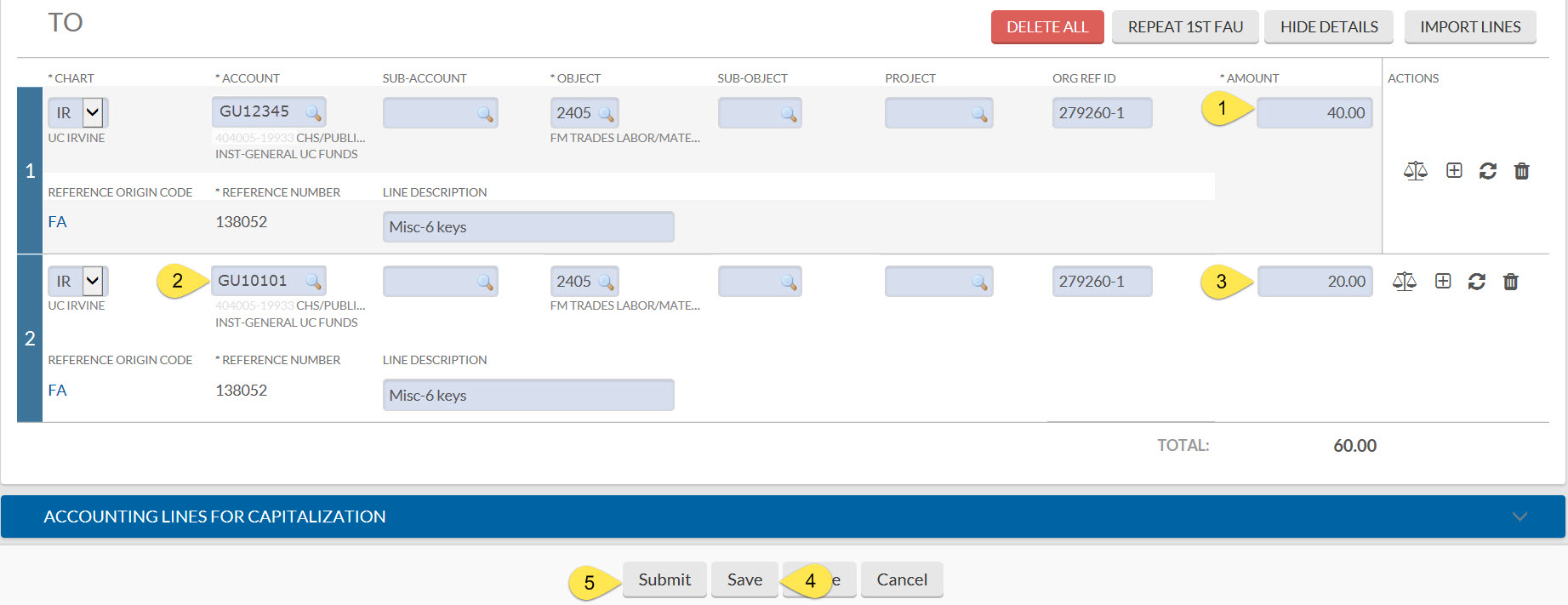
GEC To section with two corrected lines: line one showing account GU12345 with an amount of $40.00, and line two showing account GU10101 with an amount of $20.00
The GEC To section with the split amounts correctly entered: $40.00 for account GU12345 on line one, and $20.00 for account GU10101 on line two. Save and submit the eDoc to complete the partial correction.

Correcting an Entry That has Already Been Imported into Another GEC

When importing an entry that has already been corrected with a GEC, the entry will not be selectable. In this example, the Charge of $49.55 was corrected using GEC document number 5663030.
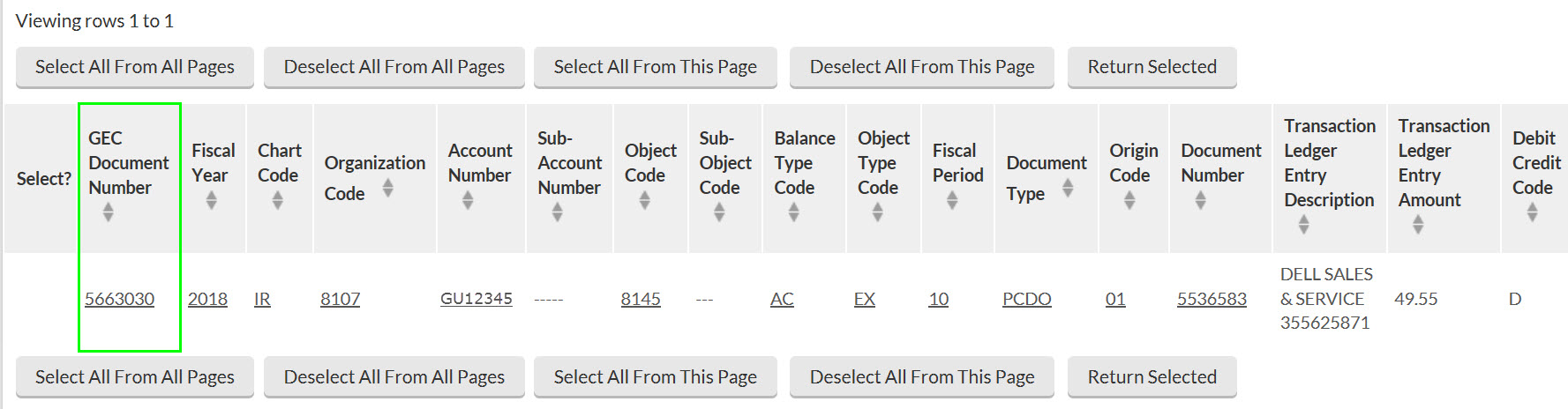
GEC entry import screen showing a $49.55 charge that cannot be selected because it has already been corrected by GEC document number 5663030
The GEC entry import screen showing the original $49.55 charge as non-selectable because it was already corrected by GEC document number 5663030. The GEC document itself must be imported instead.

Since the original charge cannot be selected, the GEC must be selected to import into the new GEC.
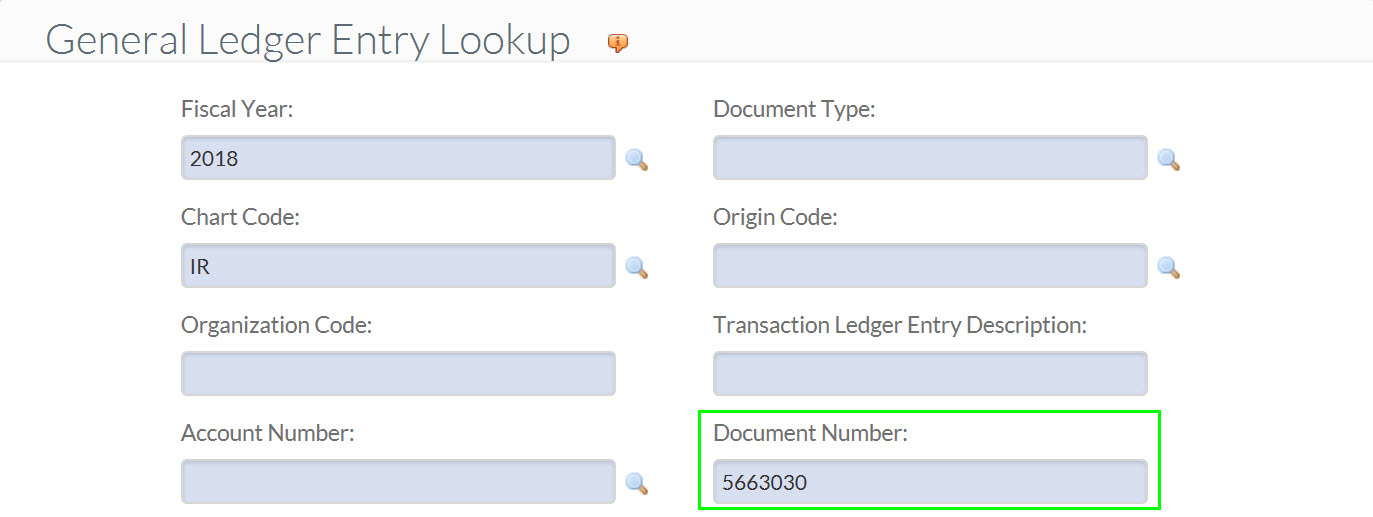
GEC entry import screen showing GEC document number 5663030 selected for import in place of the original non-selectable charge
The GEC entry import screen with GEC document number 5663030 selected for import. When the original entry is not selectable, the correcting GEC document must be imported instead.

When importing entries that have been corrected using a GEC it’s important to look at the Debit Credit Code column. To correct an actual expense, the entry showing a debit in the Debit Credit Code column should be chosen as this is the actual expense.
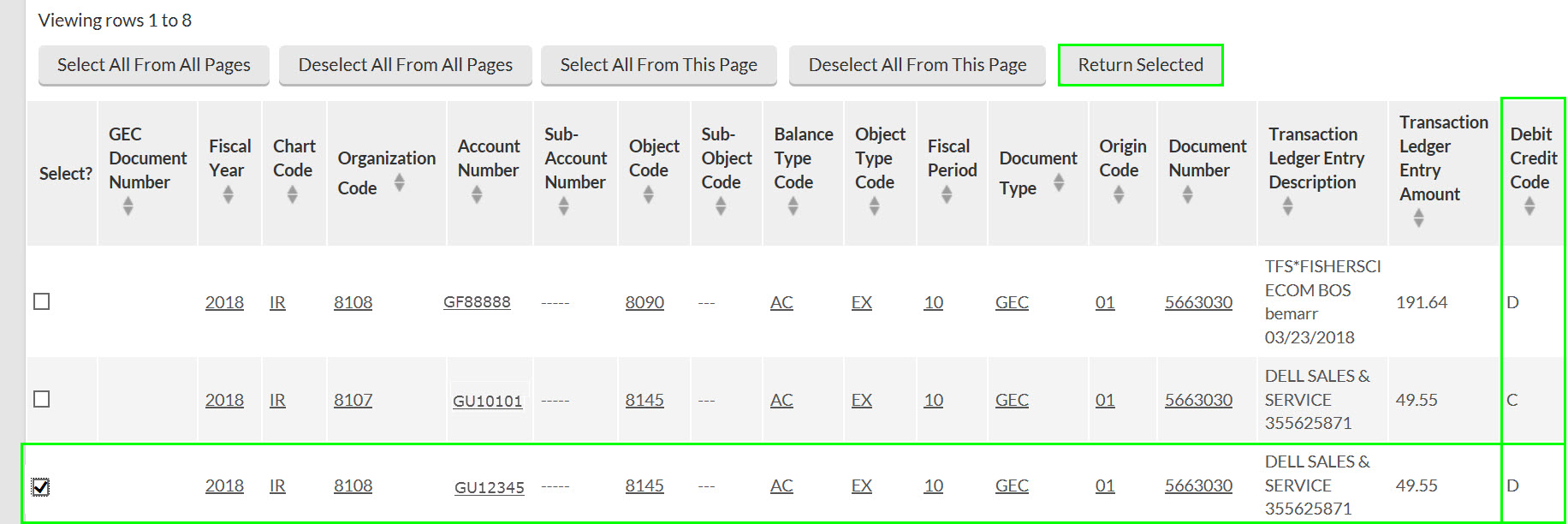
GEC entry import screen with the Debit Credit Code column visible and the debit entry highlighted as the actual expense to be selected for correction
The GEC entry import screen showing the Debit Credit Code column. When correcting an actual expense from a previously processed GEC, select the entry showing a debit in the Debit Credit Code column, as this represents the actual expense.

Select the copy-down button.
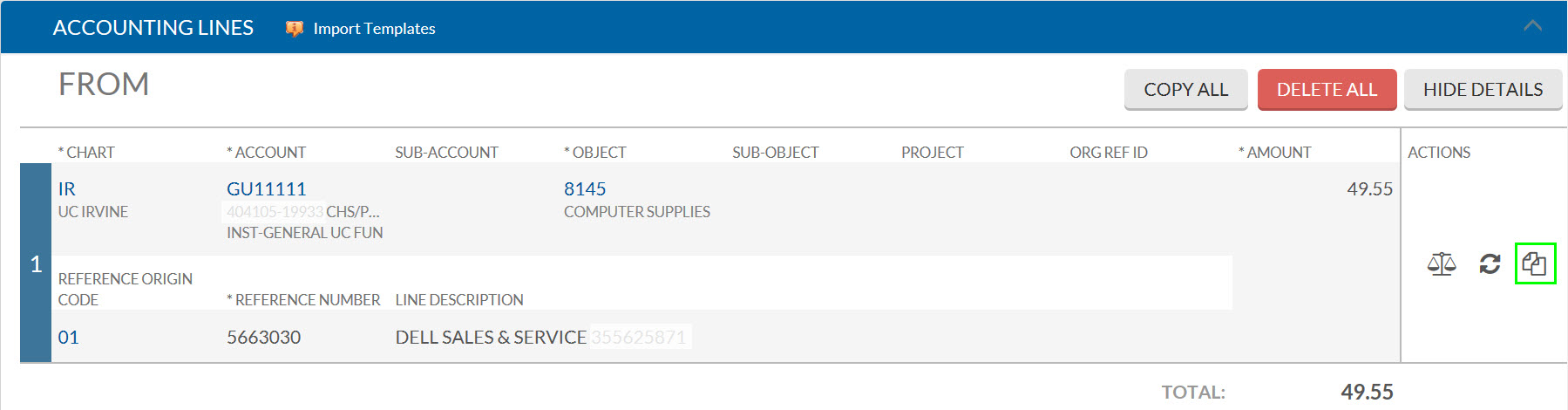
GEC From section showing the imported debit entry with the copy-down button available to copy it to the To section
The GEC From section with the debit entry imported from the previously processed GEC. Select the copy-down button to copy the entry into the To section where the correct account number can be entered.

Change the Account Number field to the correct account number. Then save and submit the eDoc.
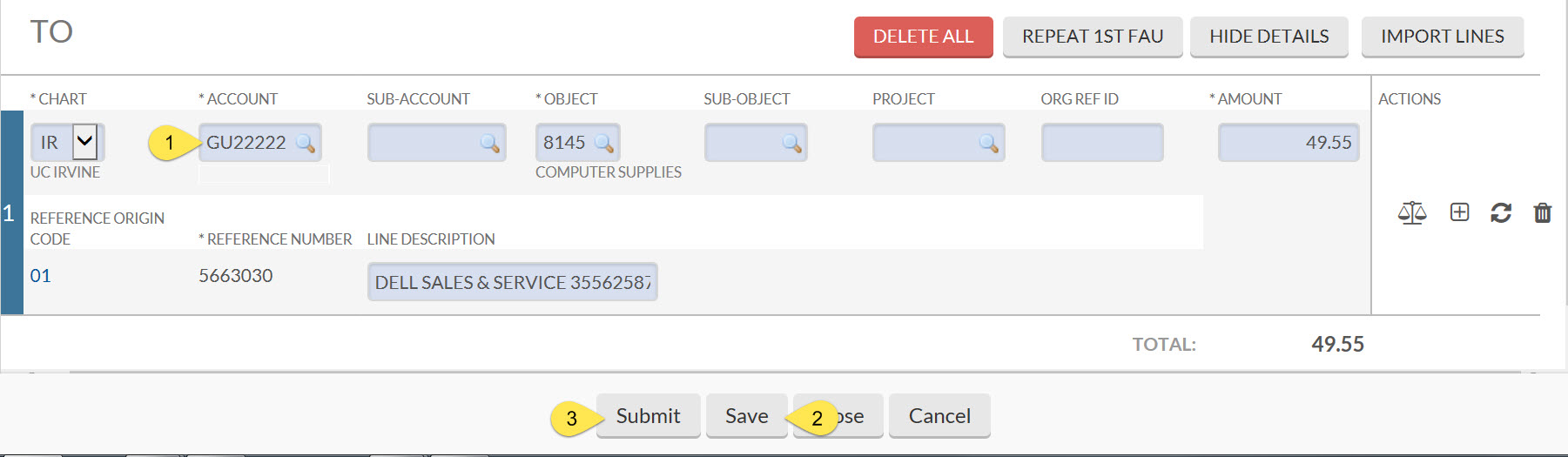
GEC To section showing the Account Number field updated to the corrected account number, ready to be saved and submitted
The GEC To section with the corrected account number entered in the Account Number field. Save and submit the eDoc to complete the correction for an entry that was previously imported into another GEC.

Reversing a GEC

If a GEC is processed in error, it can be reversed. To reverse a GEC, import all of the entries created by the GEC into the From section.
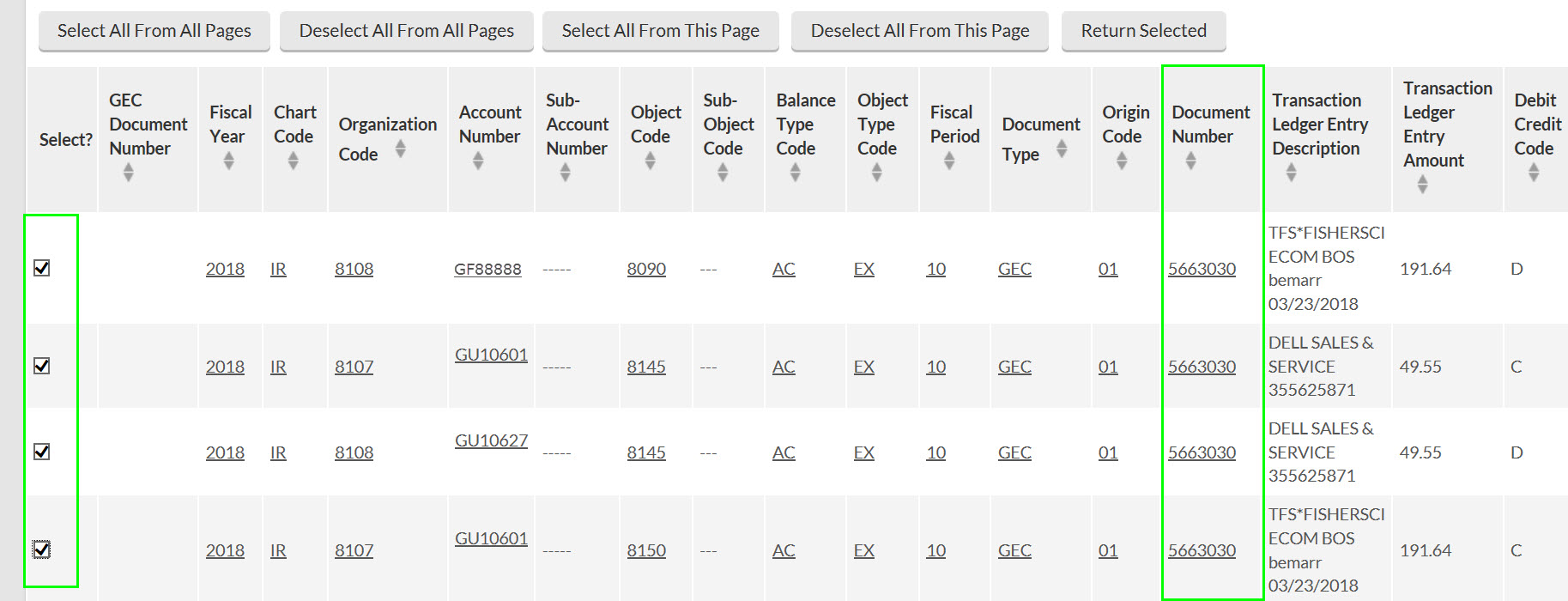
GEC entry import screen showing the entries created by the previously processed GEC available for selection to begin the reversal
The GEC entry import screen showing the entries from the previously processed GEC. All entries created by the original GEC must be selected and imported into the From section to reverse it.
GEC From section with all entries from the original GEC imported, with the To section left blank for a one-sided GEC reversal
The GEC From section with all entries from the original GEC imported. The To section is intentionally left blank, creating a one-sided GEC that will reverse the original correction when saved and submitted.

Save and submit the new GEC. The TO section should be left blank. This is called a “One-Sided GEC.” Importing entries into the From section only will reverse the first GEC.
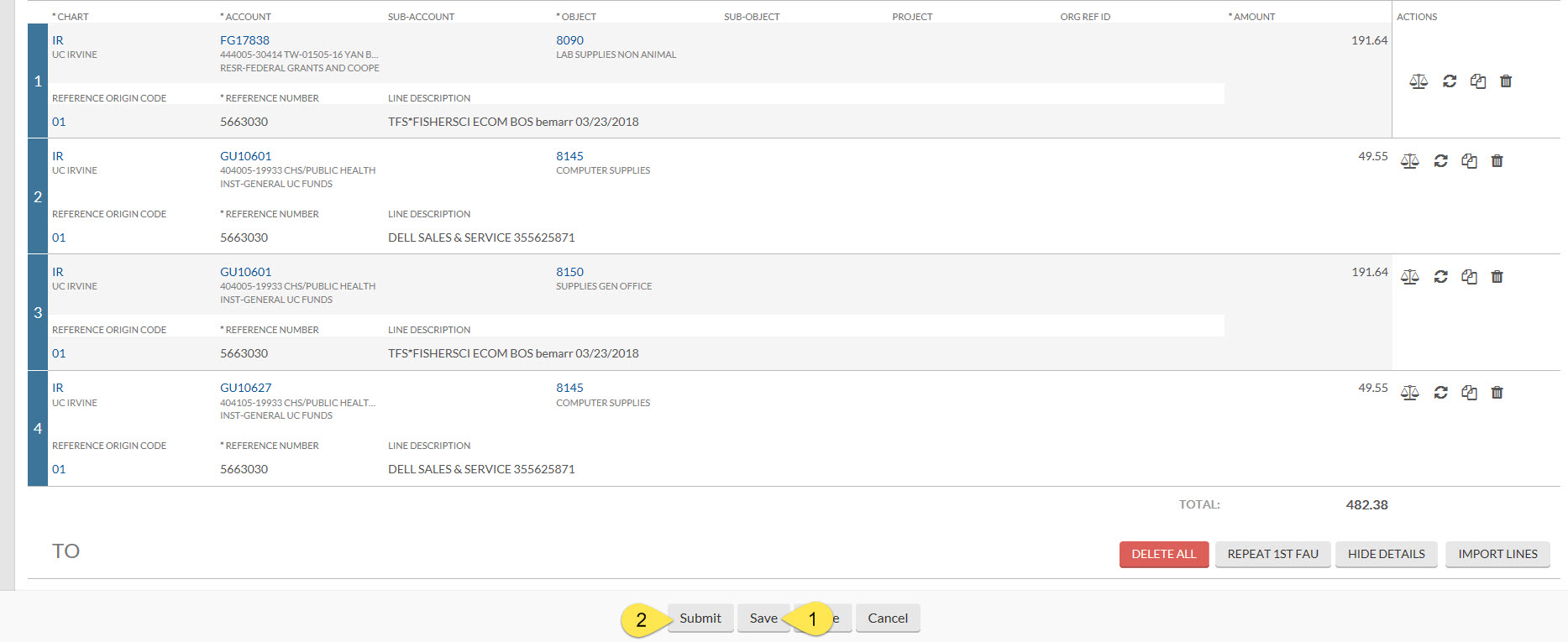
GEC document showing entries populated in the From section only, with the To section left completely blank to perform a one-sided GEC reversal
The completed one-sided GEC with entries in the From section only and the To section left blank. Submitting the document in this state reverses the original GEC that was processed in error.

Instructions for processing a GEC to correct use tax and processing a GEC with an equipment object code can be found on the KFS Purchasing Training Guides and Resources page.

If a GEC is performed on a PALCard transaction, the user must go into the original PALCard/PCDO document and update the Notes and Attachments section of the PCDO with the GEC document number and review date.