TEM Arranger Dashboard
The Travel and Event Arranger Dashboard is a new tool that allows travel arrangers to view whether someone created a TEM profiles, view enroute documents for their travelers/employees they are an Arranger for, and assist with reconciling corporate card charges for Travel and Event payees.
Access
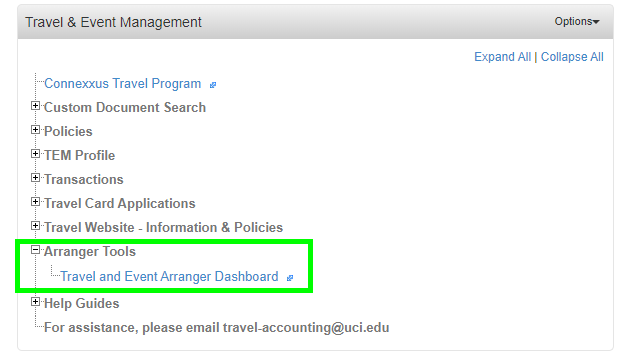
Access to the Travel and Event Arrangers Dashboard is in Zotportal, under Travel & Event Management, under Arranger Tools.
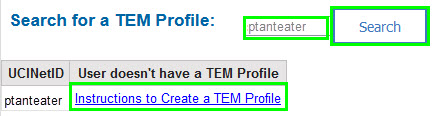
Search for a TEM Profile
The Search for a TEM Profile section (right-hand side of the screen) allows Arrangers to search for a particular person in their organization and see if that person has a TEM profile.
If the person does not have a TEM profile, there will be a link to the instructions that the potential Arranger can send to the employee, on how to create their own TEM Porfile. Note that UCPath is constantly updating KFS with Active employee status, and only someone whom has not created their TEM Profile before, and is on Active employment status in UCPath (including CWR employees), will be able to create a brand new TEM Profile. Instructions to create a TEM Profile are also available on our website.
The Search field only accepts UCInetID’s.
My TEM Payees
The TEM Payees section will show all payees that the Arranger is a TEM Organization Profile Arranger for. This is a KSAMS Role-based access report. This dashboard will not include individual Arrangers that a Traveler added manuall to their TEM Profile. Organization Arrangers can Filter by First and Last Name, Active vs. Inactive TEM profiles, and Organization code. (Partial names can be entered in the Filter TEM Payees prompt, but UCInetIDs will not work.)

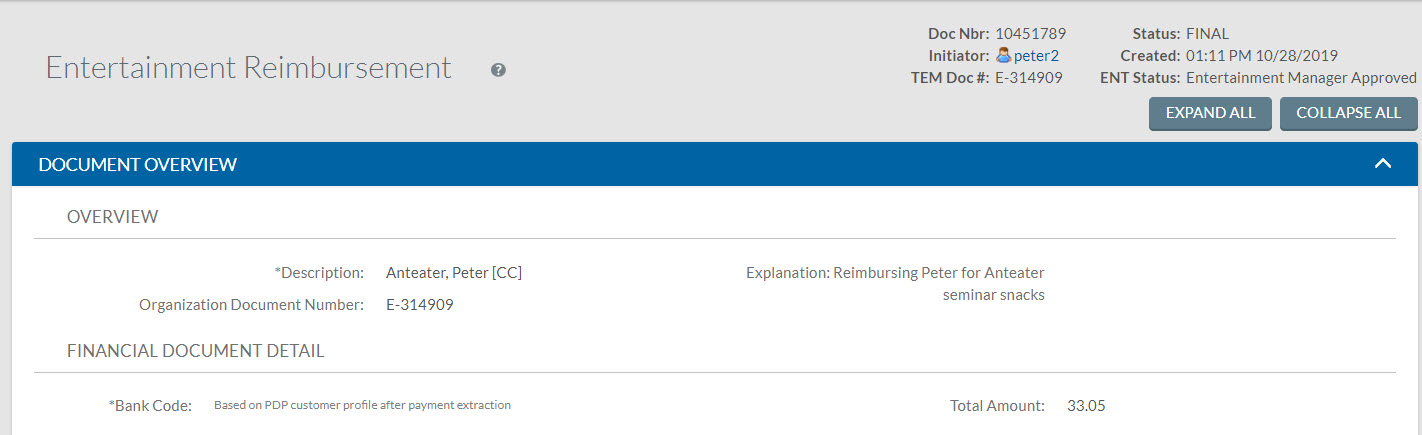
If a traveler has reimbursements that are Enroute, the number of reimbursements will appear next to their name. Arrangers can click on the document number to open and view the enroute document in KFS (prior login to KFS needed).


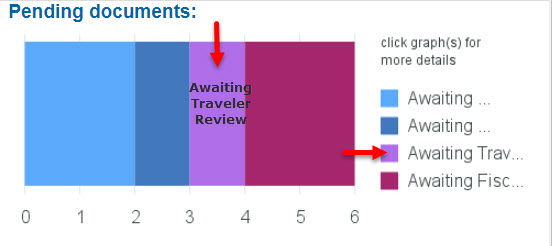
Pending Documents
The pending documents section will display a color chart representing the status of enroute documents. Hovering over each color will show the status. Selecting a color bar in either the graph, or the legend boxes will take the Arranger to a screen displaying all documents with the selected status.
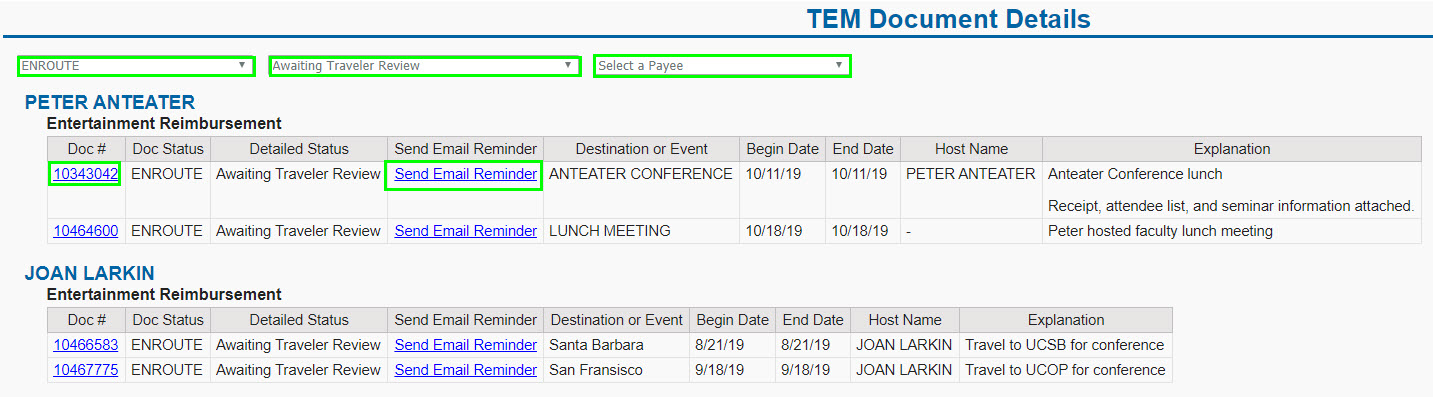
In the TEM Document Details screen Arrangers can filter by Status and Payee (First or Last Name).
Arrangers can also open the TEM document by clicking on the document number, and elect to send the payee a reminder email by clicking on the "Send Email Reminder" link.
Card Charges
The Card Charges section allows Arrangers to view all card charges for their payees. This can be filtered by Payees, in the prior "My TEM Payees" section.
- The Transaction date will appear red when the current date is 30 days or more past the transaction Posting Date.
- Document numbers in the Assigned Document column indicate that the charge has been imported into a TR or ENT Reimbursement document, but it may not yet be final. Arrangers can click on the Assigned Document number to view the reimbursement document.
- The "Not Reconciled" drop down allows Arrangers to toggle between Unreconciled charges, Reconciled charges, and charges that have been Cleared centrally by Travel Accounting.
