Account Delegate Global
The Account Delegate Global eDoc removes all currently assigned delegates to chosen account(s) and replaces them with a new delegate setup. It allows initiators to assign multiple delegates at once, and/or select multiple accounts at a time for Fiscal Officer Delegations.
Warning: The Account Delegate Global eDoc will remove all currently assigned delegates on the selected account(s) and replace them with the delegates configured in the new document. Ensure that every delegate needed for the selected accounts is included in the eDoc before submitting.
This guide covers assigning multiple delegates and/or multiple accounts on a single document. To create or update an Account Delegate for an individual account, refer to the Account Delegate guide.
Before You Begin
Before creating an Account Delegate Global eDoc, ensure you have the following information ready:
- The UCInetID of each individual being assigned as a delegate.
- The KFS account number(s) for the accounts the delegates will be approving transactions on.
- The document type each delegate will be authorized to approve. (Use “KFS” to include all document types.)
- The start date for each delegate’s approval authority.
- A complete list of all delegates needed for the selected accounts, since this eDoc will replace any previously assigned delegates.
Document Overview Tab
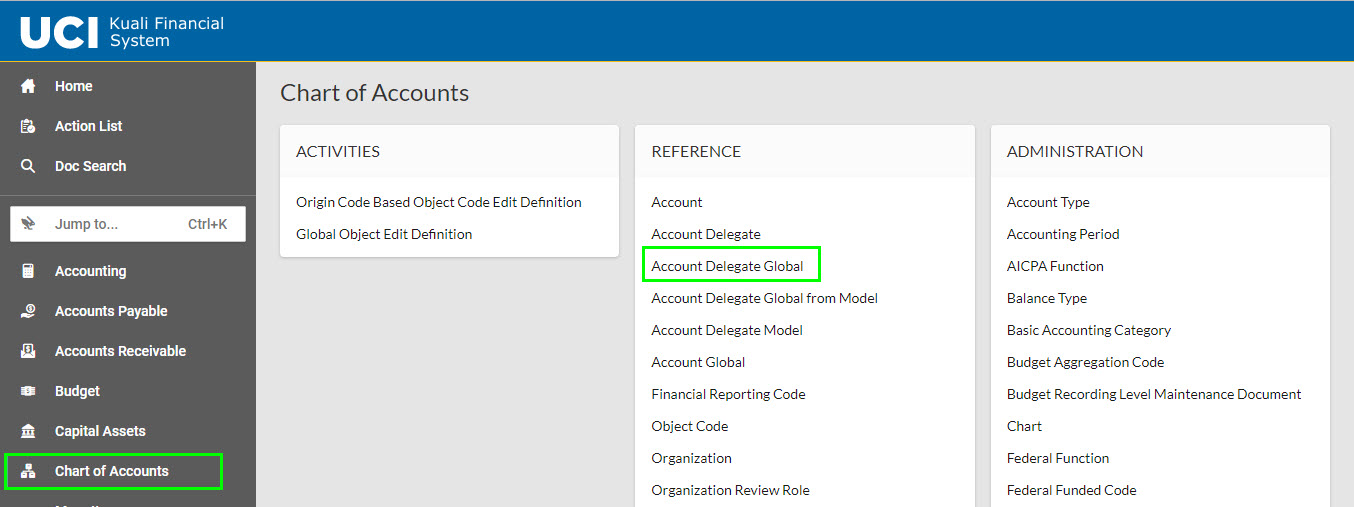
Go to Kuali Financials and log in. In the Chart of Accounts portlet, click on the Account Delegate Global link.
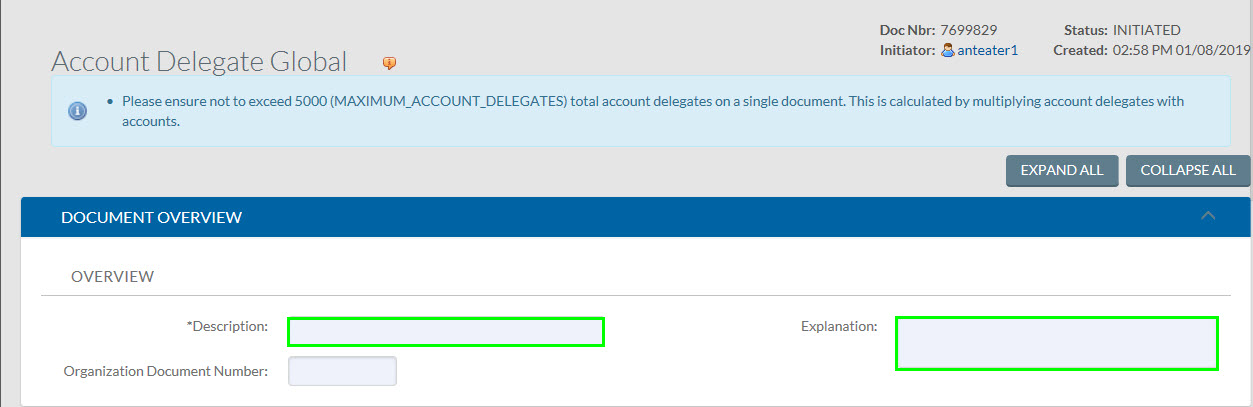
In the Document Overview tab, enter a Description and Explanation.
Edit Global Delegate Tab
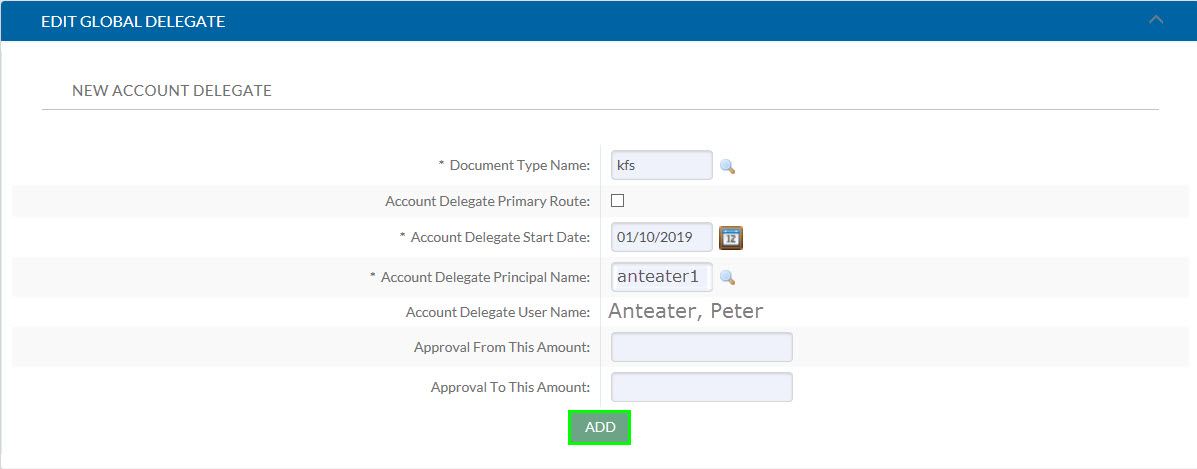
Complete the following fields to configure the delegate. Click the ADD button after completing all required fields. Once added, new fields will appear so that additional delegates can be configured.
Document Type Name: Use the lookup to choose the type of document that the delegate will be authorized to approve. A list of KFS document types can be found on our Fiscal Officer web page.
Common Document Types
| Document Type Code | Document Type Description |
|---|---|
| KFS | All KFS Documents |
| KFSM | Maintenance Documents are used to establish and maintain a table record (for example, account, sub-account, object code, sub-object code, project, or delegates). |
| KFST | Transaction documents are documents that involve financial data (for example, General Error Correction, Disbursement Voucher, and the Budget Adjustment). |
Account Delegate Principal Name: The UCInetID of the person being assigned to the Account Delegate role.
Account Delegate Start Date: The delegate’s approval authority becomes active on this date. Delegates cannot take action on eDocs that have routed to the Fiscal Officer before they became a delegate, regardless of Account Delegate Start Date.
Account Delegate Primary Route: If this checkbox is not selected (default), the delegate is a Secondary Delegate and will need to use a filter in their Action List to see documents they are authorized to approve. Only select this checkbox if the delegate is to be set as a Primary Delegate for a long-term absence.
Approval From This Amount (optional): Enter the minimum dollar amount of a transaction for which the delegate is authorized.
Approval To This Amount (optional): Enter the maximum dollar amount of a transaction for which the delegate is authorized.
Note: Not all KFS transaction documents have a dollar amount associated with them.
Warning: Each new Account Delegate Global eDoc will replace all previously configured delegates on the selected accounts. Ensure that all delegates needed for the account are added to the eDoc before submitting.
Edit List of Accounts Tab
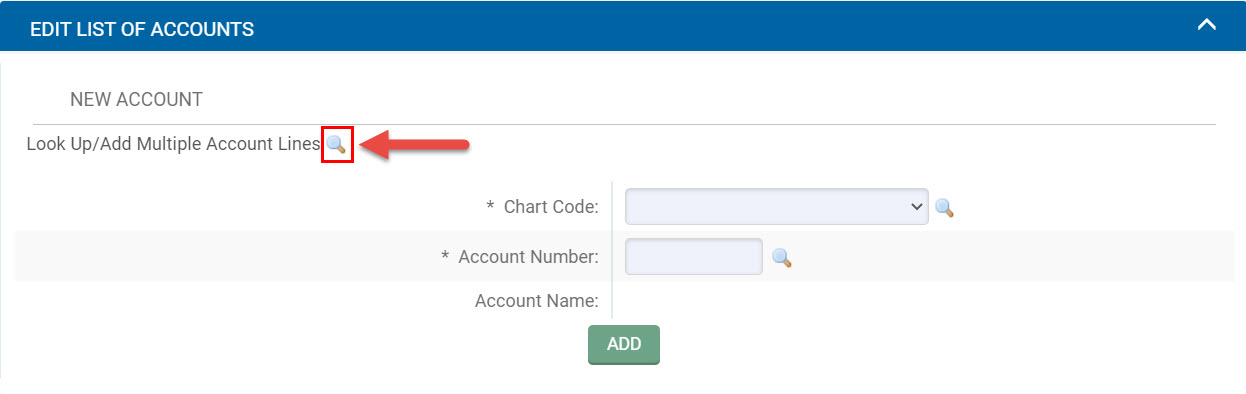
Select the Chart Code and KFS Account to assign an account to the delegate.
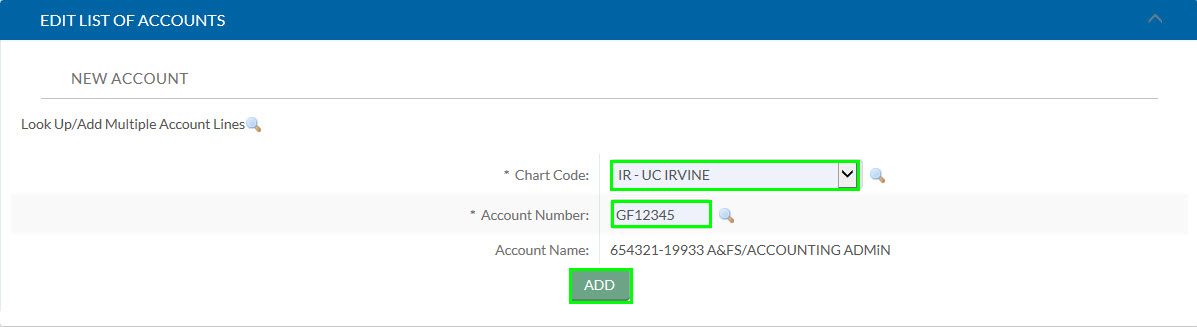
Once the ADD button is selected, new fields will appear so that more accounts can be added.
To add multiple accounts at once, click on the Look Up/Add Multiple Account Lines magnifying glass.
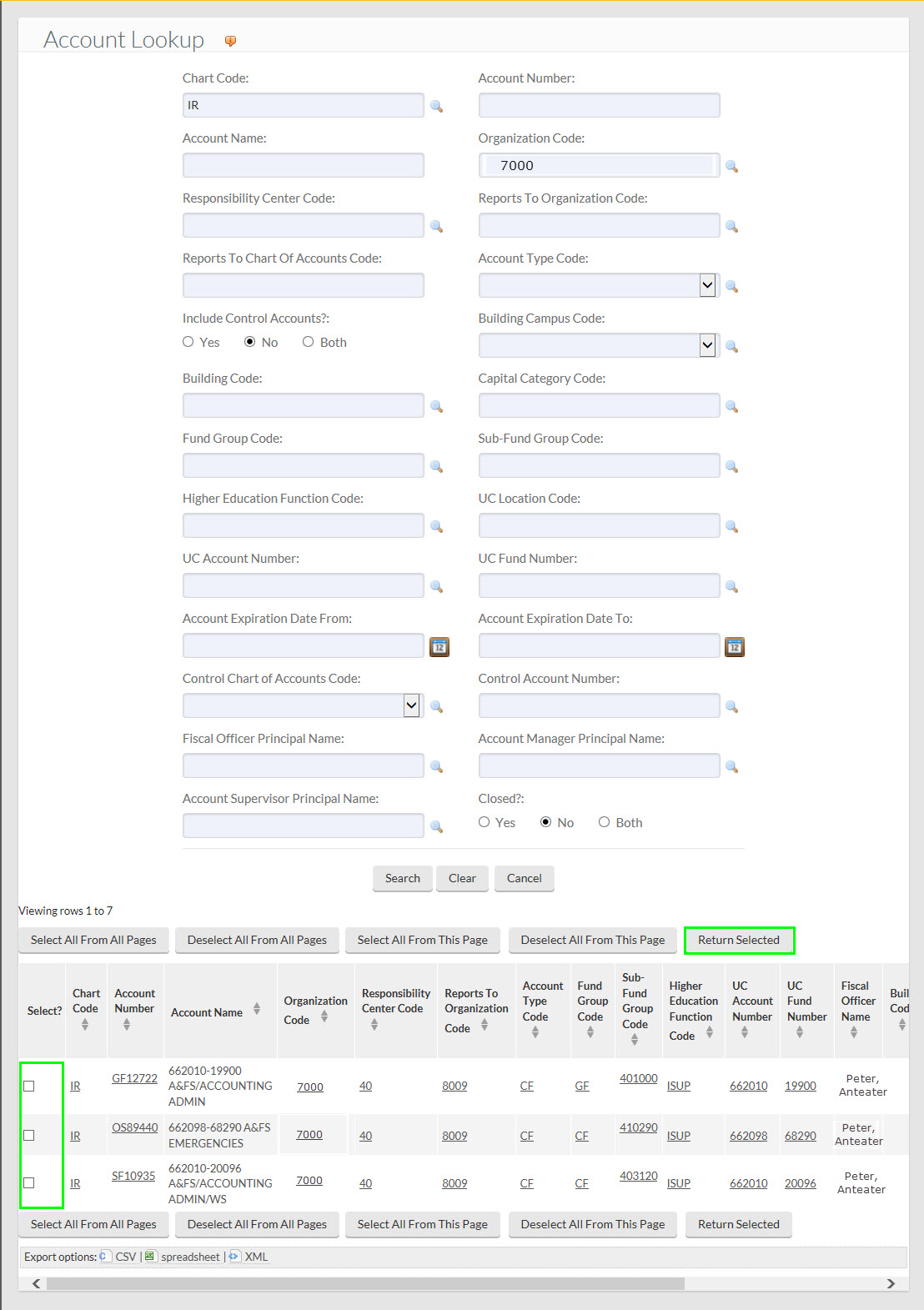
Use the Account Lookup to select and return accounts to the Edit List of Accounts tab.
Related Resources
- Setting Your Action List as a Delegate — If you have been assigned as a delegate, follow this guide to configure your KFS Action List so you can begin reviewing and approving documents on behalf of the Fiscal Officer.
- Account Delegate guide — Use this guide to create or update an Account Delegate for an individual account.
- KFS Document Types — A full list of KFS document types available when setting the Document Type Name field.